
How to Upgrade from Your Free Trial to a Paid Plan
Keep using ModelMonkey after your trial ends. Five short steps from the sidebar to checkout, with screenshots.
When your free trial runs out, you'll see a 'You're out of credits' banner in the ModelMonkey sidebar. Upgrading to a paid plan takes about a minute. This guide walks you through where to click, what to expect at Stripe checkout, and how to apply a promo code if you have one.
What You'll Need
- A Google Sheets account with ModelMonkey installed
- A credit card (or Apple Pay / Link account) for checkout
Step-by-Step Guide
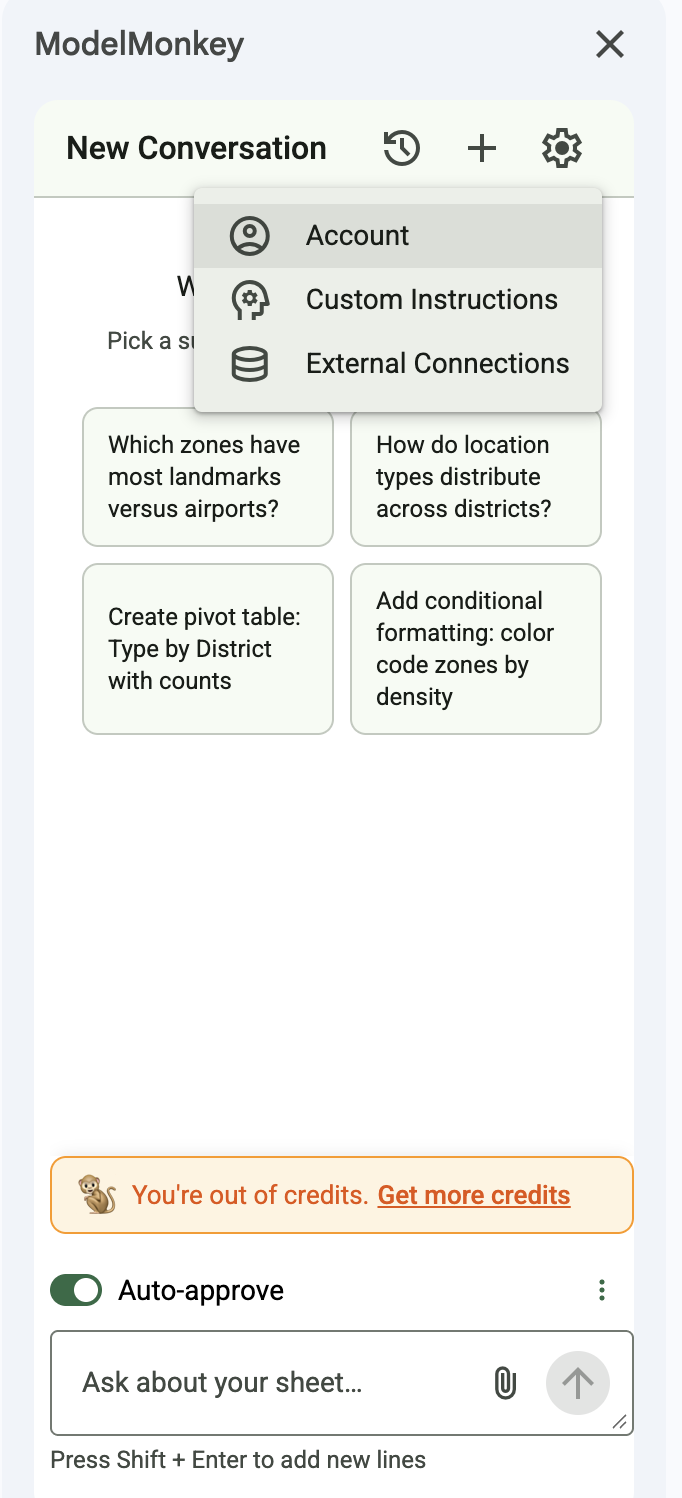
Open the Account page
In the ModelMonkey sidebar, click the gear icon in the top-right and choose Account.
- Open any Google Sheet and launch ModelMonkey from Extensions → ModelMonkey → Open.
- In the sidebar header, click the gear icon next to the + button.
- Pick Account from the menu that drops down.
Click Upgrade Now
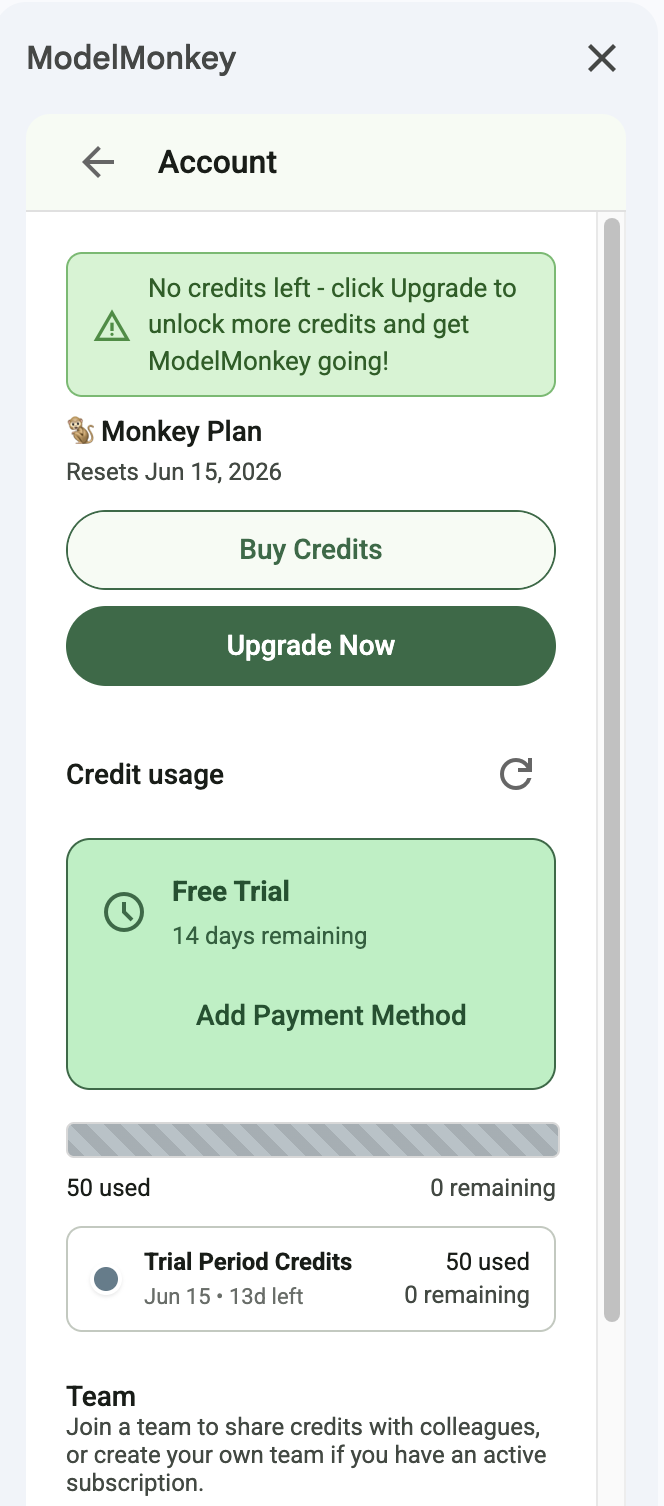
On the Account page, hit the green Upgrade Now button.
- The Account page shows your current plan, credits remaining, and how many days are left on your trial.
- Click Upgrade Now to open the plan picker on modelmonkey.io.
- Buy Credits is a separate one-off top-up. For a recurring plan, use Upgrade Now.
Pick a plan
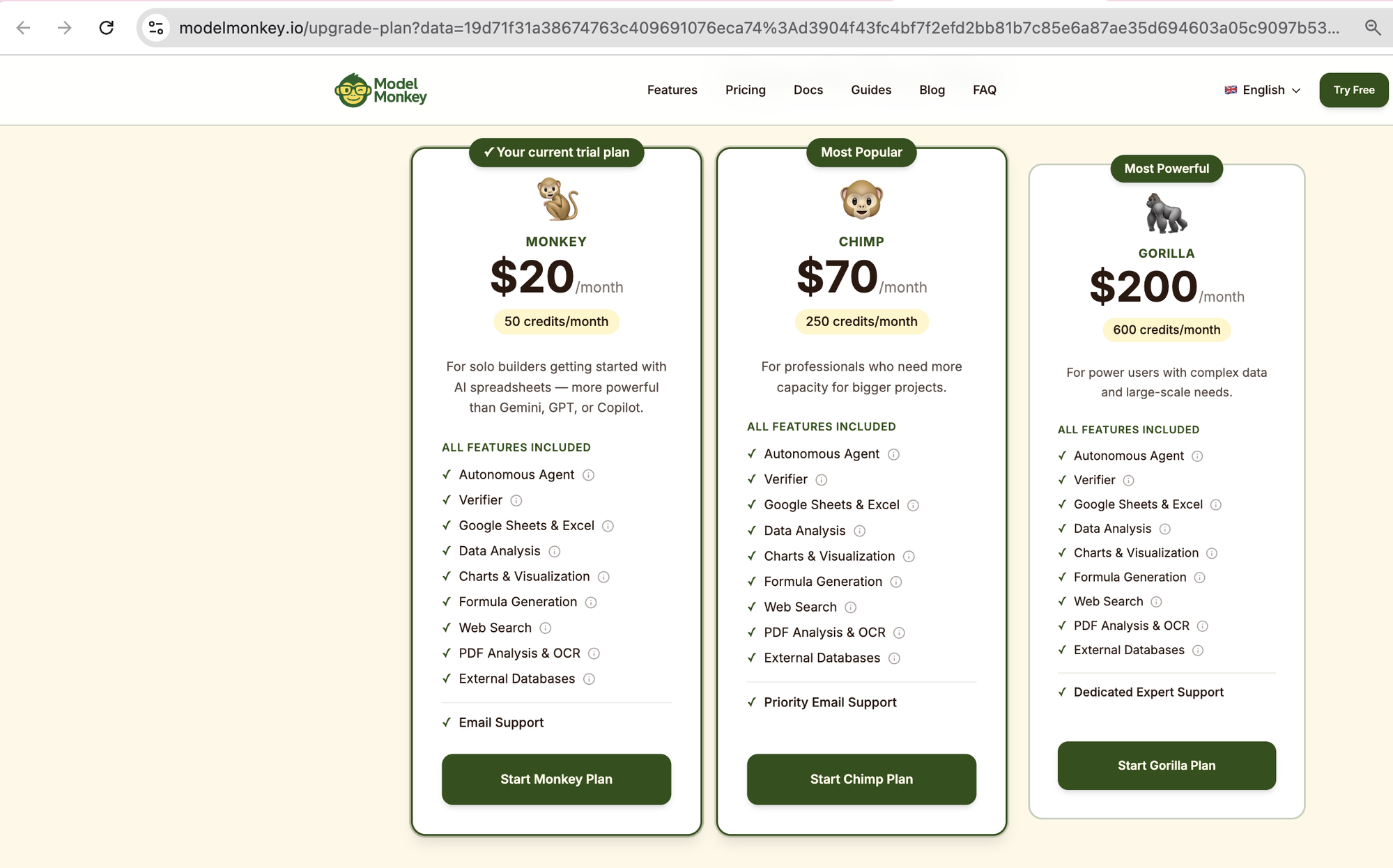
Choose between Monkey ($20/mo), Chimp ($70/mo), or Gorilla ($200/mo).
- Monkey covers 50 credits/month and is the closest fit if your trial felt comfortable. Most solo users start here.
- Chimp gives you 250 credits/month and adds Priority Email Support. Right if you hit the trial cap quickly.
- Gorilla bumps you to 600 credits/month and Dedicated Expert Support, for heavy or team usage.
- Click Start [plan name] Plan when you have picked one.
Pro Tip
You can change plans or cancel anytime from the Account page later.Enter your payment details (apply a promo code here)
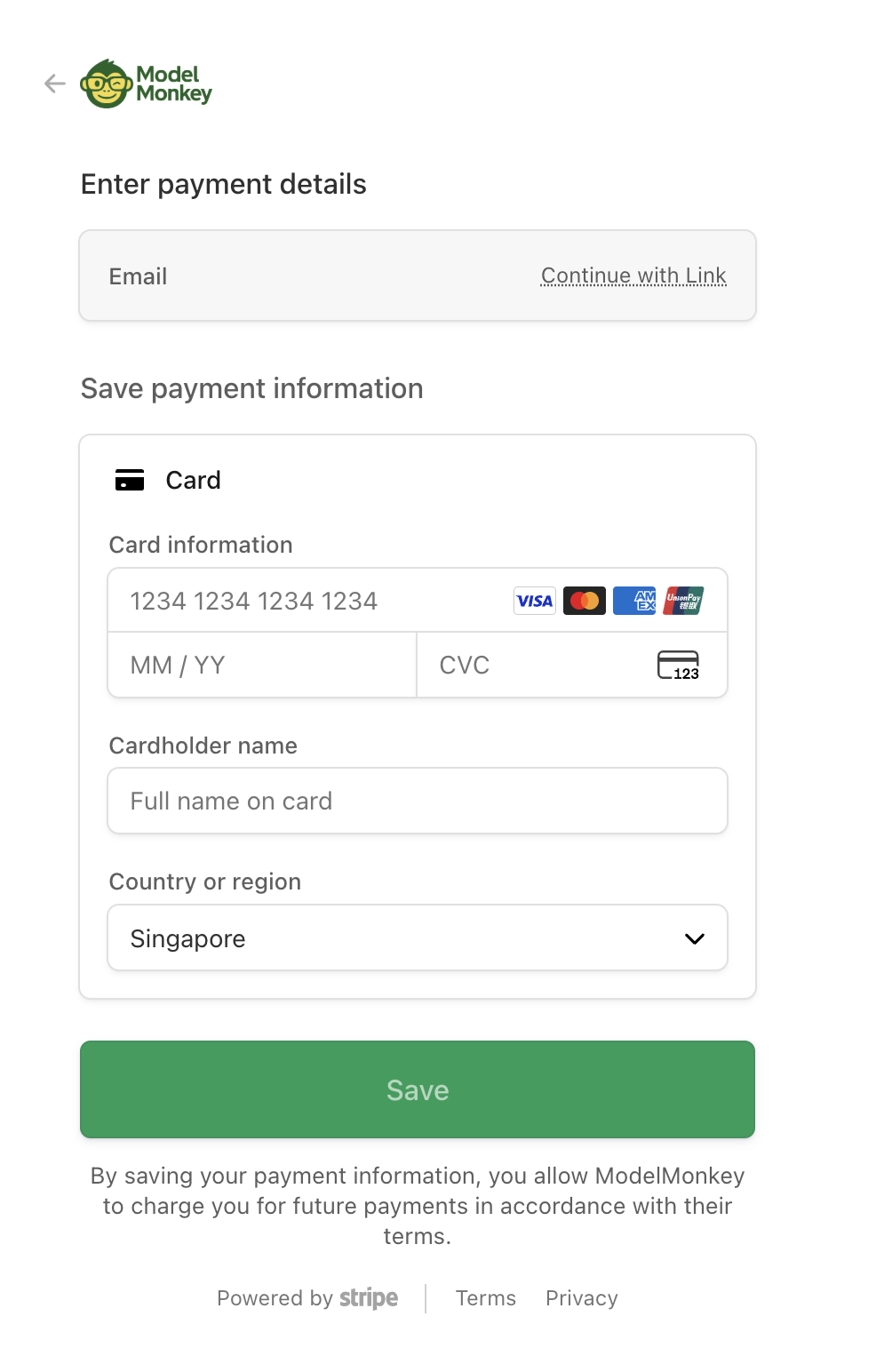
At Stripe checkout, enter your email and card. If you have a promo code, paste it before completing the form.
- Pay with Apple Pay, Link, or card. The card form accepts Visa, Mastercard, Amex, and UnionPay.
- If you have a promo code, click Add promotion code (or the equivalent in your language) and paste it. The first-month total updates immediately.
- Fill in cardholder name and country, then click Save.
Pro Tip
Promo codes only apply on the first month unless the code itself says otherwise. Normal billing resumes the following month.Confirm your new credits
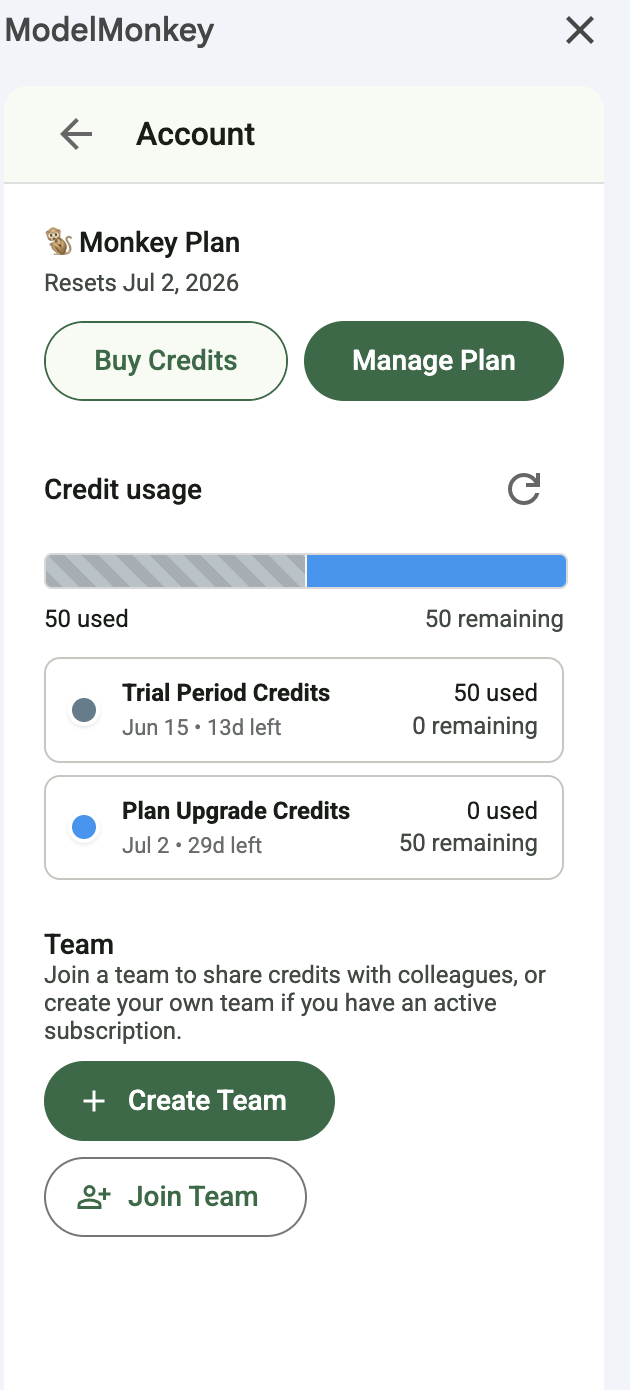
Open the Account page in the sidebar. You should see your new plan, a fresh credit balance, and a Manage Plan button (instead of Upgrade Now).
- The header should read your new plan (e.g. '🐒 Monkey Plan') with a 'Resets [date]' line one month out.
- Credit usage should show your monthly allowance (50 for Monkey, 250 for Chimp, 600 for Gorilla) under 'Plan Upgrade Credits'.
- Your trial tranche still shows up alongside, marked as 0 remaining — that's expected.
- If the sidebar still shows the old "out of credits" banner, close and reopen the Google Sheet. Apps Script caches sidebar HTML for up to an hour.
Wrapping Up
That's it. If anything went sideways at checkout or your sidebar still shows the trial banner an hour later, reach out at support@modelmonkey.io and we'll sort it out directly.
Frequently Asked Questions
Can I cancel after upgrading?
Yes. From the Account page, click Manage Plan and you can cancel from the Stripe customer portal. Cancellation takes effect at the end of the current billing cycle, so you keep your credits until then.
What happens to my unused trial credits when I upgrade?
Trial credits are separate from paid-plan credits. Once you upgrade, your plan's monthly credit allowance starts fresh, and any unused trial credits are retired.
I have a promo code but the checkout page does not show a promo field.
Look for 'Add promotion code' or similar wording, sometimes collapsed under a small link. If you genuinely can't find it on your locale's checkout page, email support@modelmonkey.io and we'll apply the code on your behalf.
My trial expired but I cannot see the Upgrade Now button.
Make sure you're on the latest version of the ModelMonkey add-on. Try closing and reopening Google Sheets. If the button still does not appear, contact support@modelmonkey.io with a screenshot.