
How to Choose a Plan or Buy Credits
Five short steps from the ModelMonkey sidebar to the right purchase option and checkout.
ModelMonkey offers monthly subscriptions and one-time credit packs. This guide shows where to choose either option, what to expect at Stripe checkout, and how to apply a promo code if you have one.
What You'll Need
- A Google Sheets account with ModelMonkey installed
- A credit card (or Apple Pay / Link account) for checkout
Step-by-Step Guide
Open the Account page
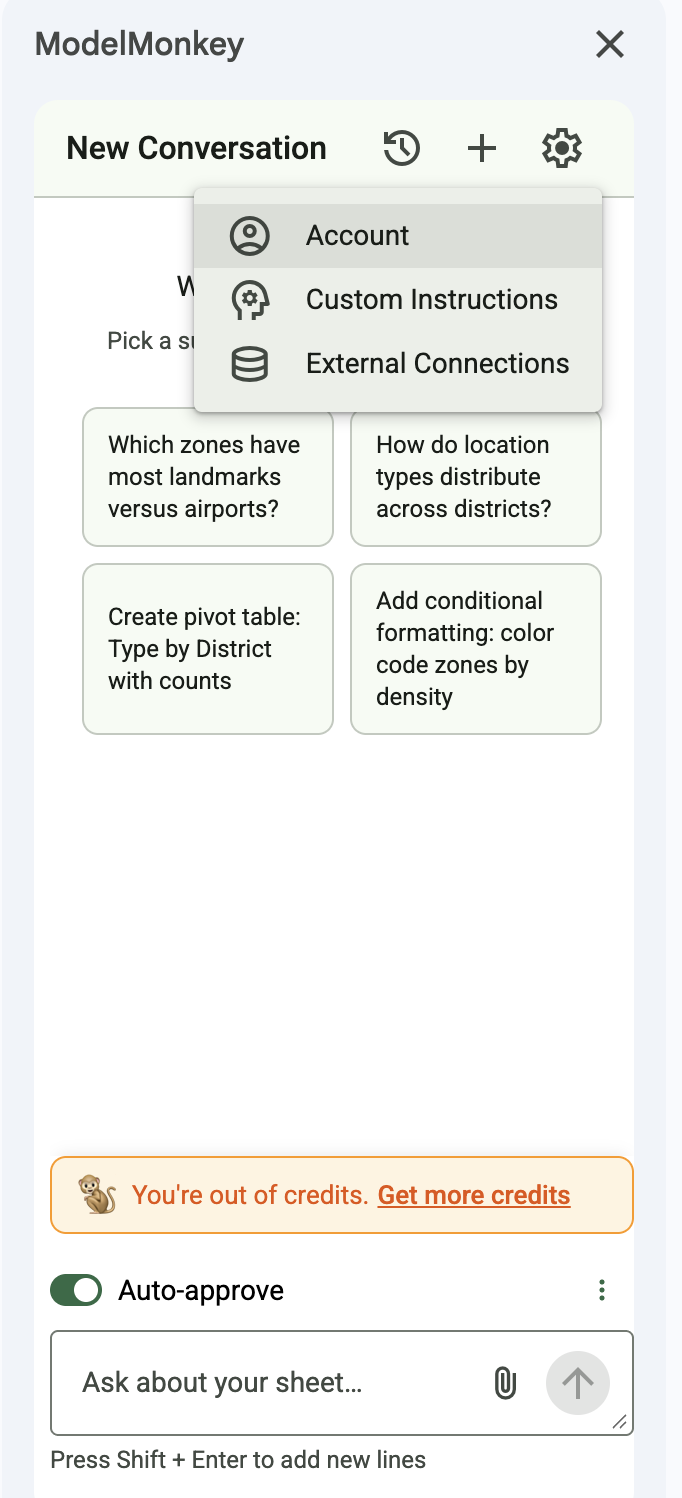
In the ModelMonkey sidebar, click the gear icon in the top-right and choose Account.
- Open any Google Sheet and launch ModelMonkey from Extensions → ModelMonkey → Open.
- In the sidebar header, click the gear icon next to the + button.
- Pick Account from the menu that drops down.
Choose Subscribe or Buy Credits
On the Account page, choose a monthly subscription or a one-time credit pack.
- Subscribe opens the monthly plan picker on modelmonkey.io.
- Buy Credits opens the one-time pack chooser in the add-in.
- Both options add credits to the same account for use in Google Sheets or Excel.
Pick a plan
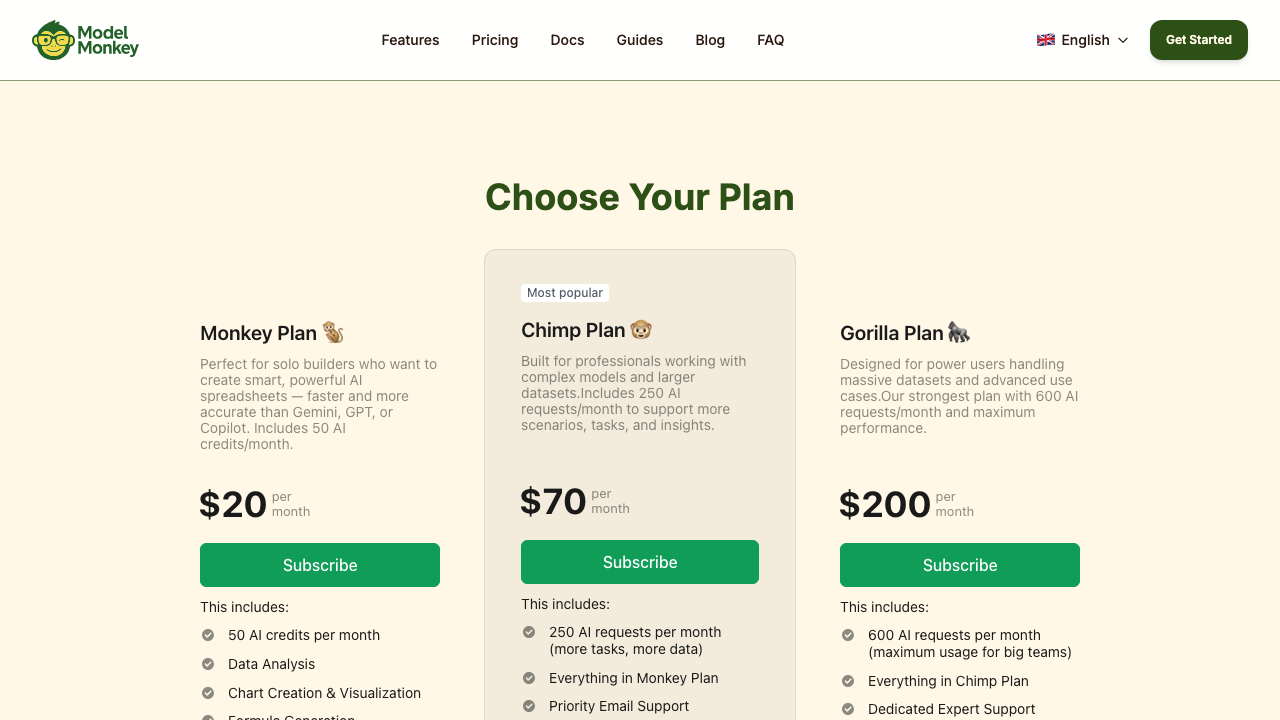
Choose between Monkey ($20/mo), Chimp ($70/mo), or Gorilla ($200/mo).
- Monkey covers 50 credits/month and suits lighter, occasional spreadsheet work.
- Chimp gives you 250 credits/month and Priority Email Support for recurring professional workflows.
- Gorilla bumps you to 600 credits/month and Dedicated Expert Support, for heavy or team usage.
- Click Subscribe on the plan you want.
Pro Tip
You can change plans or cancel anytime from the Account page later.Enter your payment details (apply a promo code here)
At Stripe checkout, enter your email and card. If you have a promo code, paste it before completing the form.
- Pay with Apple Pay, Link, or card. The card form accepts Visa, Mastercard, Amex, and UnionPay.
- If you have a promo code, click Add promotion code (or the equivalent in your language) and paste it. The first-month total updates immediately.
- Review the recurring price and billing terms, then confirm the subscription.
Pro Tip
Promotion-code duration and eligibility vary. Stripe shows the applicable discount and total before you confirm.Confirm your new credits
Open the Account page in the sidebar. You should see your new plan, a fresh credit balance, and a Manage Plan button (instead of Upgrade Now).
- The header should read your new plan (e.g. '🐒 Monkey Plan') with a 'Resets [date]' line one month out.
- Credit usage should show the monthly allowance for your selected plan.
- If the sidebar still shows the old "out of credits" banner, close and reopen the Google Sheet. Apps Script caches sidebar HTML for up to an hour.
Wrapping Up
That's it. If anything went sideways at checkout or your new credits are not visible after reopening the sidebar, reach out at support@modelmonkey.io and we'll sort it out directly.
Frequently Asked Questions
Can I cancel after upgrading?
Yes. From the Account page, click Manage Plan and you can cancel from the Stripe customer portal. Cancellation takes effect at the end of the current billing cycle, so you keep your credits until then.
Can I buy credits without a subscription?
Yes. Choose Buy Credits on the Account page to purchase a one-time pack. You can use those credits without starting a monthly subscription.
I have a promo code but the checkout page does not show a promo field.
Look for 'Add promotion code' or similar wording, sometimes collapsed under a small link. If you genuinely can't find it on your locale's checkout page, email support@modelmonkey.io and we'll apply the code on your behalf.
I cannot see the Subscribe or Buy Credits buttons.
Make sure you're on the latest version of the ModelMonkey add-on. Try closing and reopening Google Sheets. If the buttons still do not appear, contact support@modelmonkey.io with a screenshot.