
This guide uses the synthetic Spreadsheet cleanup practice workbook. Its 12 transaction rows include 2 wholly blank rows and 4 partial records. The goal is to return the 10 dated records without deleting incomplete transactions that still require review.
Copy this Google Sheets template or download the Excel file. Use the Google Sheets copy for the native QUERY exercise. The XLSX companion provides the source data and guidance, but it doesn’t contain or verify native Google Sheets QUERY results.
The formulas below use comma separators. Some spreadsheet locales require semicolons.
What Google Sheets data cleaning involves
For finance teams, data cleaning means making fields consistent without hiding missing or questionable information. Review:
- Headers and field definitions
- Dates and amounts stored with the correct data type
- Wholly blank rows
- Partial records with missing fields
- Suspected duplicate transactions
- Inconsistent categories or vendor names
- Formula errors
- Record counts and financial totals before and after cleanup
Google Sheets provides commands for trimming whitespace, removing duplicates, and splitting text into columns, as described in Google’s data-cleanup guidance. Before using any command that modifies a selected range, preserve the source.
Start with Transactions A1:F13
Open the workbook and inspect Transactions!A1:F13.
- Row 1 is the header.
- Column A contains dates.
- Column B contains categories.
- Column D contains amounts.
- Rows 5 and 10 are wholly blank.
- Rows 8:9 and 11:12 are partial records that must remain available for review.
Although this guide applies field-specific checks to columns A, B, and D, all columns A:F are necessary for row integrity. The QUERY returns all 6 columns, the blank-row tests inspect all 6 cells, and the formula-error scan covers A:F.
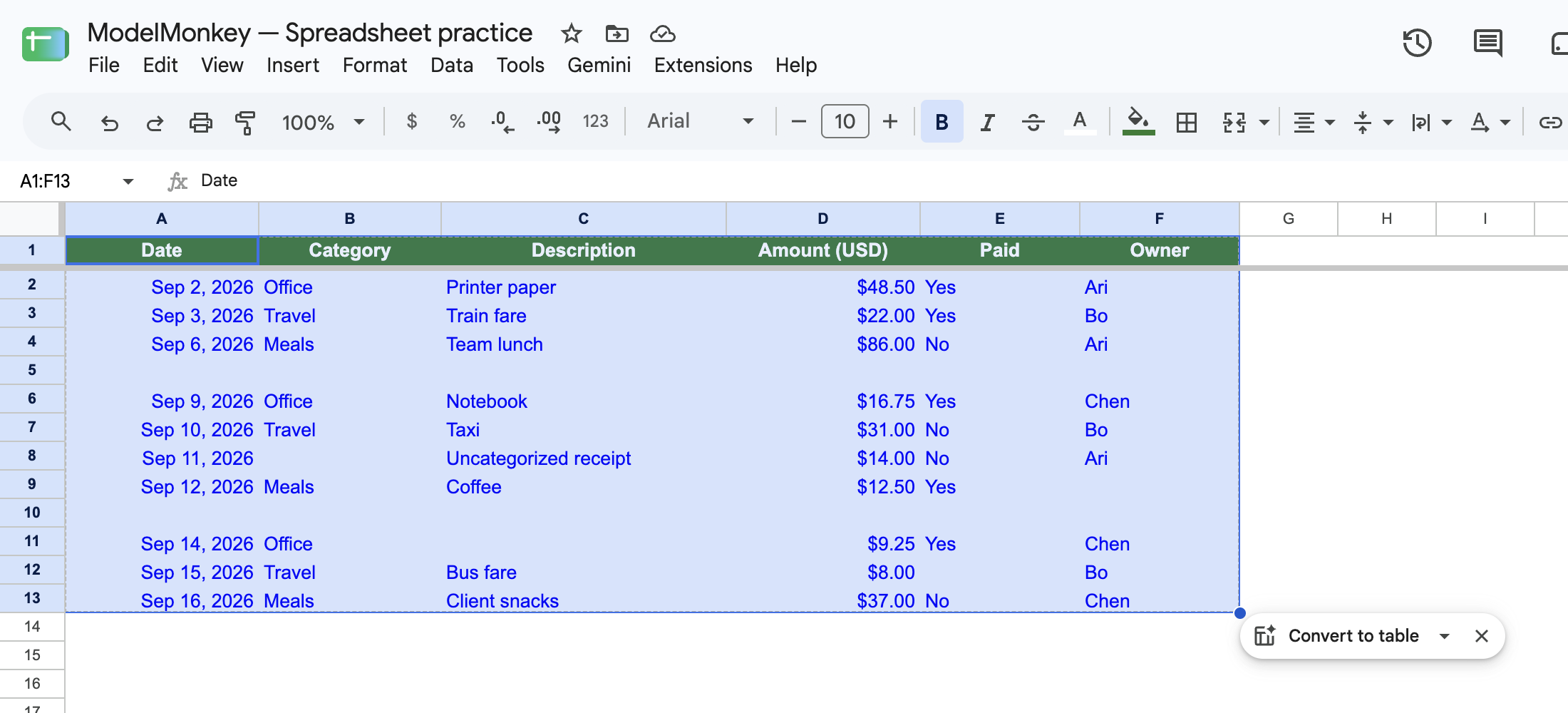
Actual Google Sheets screenshot of the restored synthetic example.
Don’t delete a single blank cell and shift the remaining cells upward. That can move one field without moving the rest of its transaction. Exclude or delete an entire row only after confirming that all 6 cells are blank.
Keep Transactions unchanged and use Practice for checks and outputs.
Inspect the source before changing it
Create this check block in Practice!H1:I6:
| Cell | Entry |
|---|---|
| H1 | Check |
| I1 | Result |
| H2 | Extra ordinary spaces in first header |
| I2 | =LEN(Transactions!A1)-LEN(TRIM(Transactions!A1)) |
| H3 | Transactions!A2 is a native date number |
| I3 | =ISNUMBER(Transactions!A2) |
| H4 | Transactions!D2 is numeric |
| I4 | =ISNUMBER(Transactions!D2) |
| H5 | Populated cells in source row 5 |
| I5 | =COUNTA(Transactions!A5:F5) |
| H6 | Source cells containing formula errors |
| I6 | =SUM(ARRAYFORMULA(N(ISERROR(Transactions!A2:F13)))) |
The expected result in Practice!I5 is 0, confirming that source row 5 is wholly blank. Run the same COUNTA test against row 10.
This check is deliberately conservative. A cell containing spaces or a formula that returns an empty string may still count as populated, so investigate those rows instead of deleting them automatically.
The type checks also require interpretation:
TRUEinI3means the date is stored as a number, not that it is the correct date.FALSEinI4means the amount isn’t a native number. It may be blank, malformed, or text such as$1,250.00.- Applying currency or date formatting doesn’t convert the underlying value.
Don’t parse an ambiguous date such as 03/04/2026 until the source convention establishes whether it means March 4 or April 3.
For a broader blank-row procedure, see Delete Empty Spreadsheet Rows Without Losing Data.
Return dated records with QUERY
In the native Google Sheets copy, Practice!A18 contains:
=QUERY(Transactions!A1:F13,"select * where A is not null",1)
Its results appear in Practice!A18:F28 and include:
- One header row
- 10 dated records
- The partial records from source rows 8:9 and 11:12
- No output rows for wholly blank source rows 5 and 10
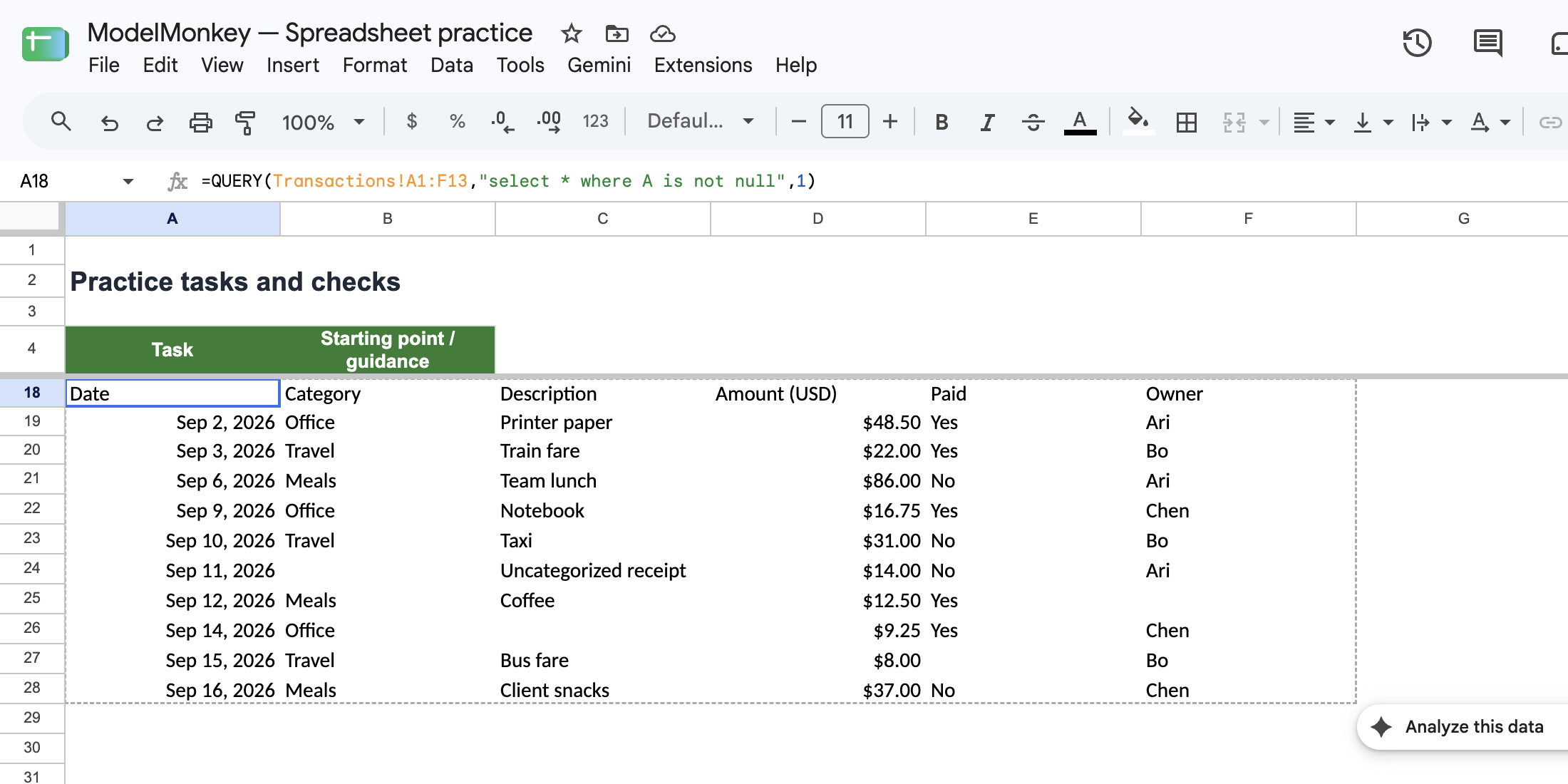
Native QUERY excludes wholly blank rows and keeps incomplete records for review.
The supplied native execution record confirms that Practice!A18 displays Date and that the result contains the header plus 10 dated records.
However, this formula doesn’t test approval, completeness, uniqueness, or correctness. It only applies the query engine’s interpretation of whether column A is null.
Google’s QUERY documentation explains that every input column receives an inferred data type. If a column contains mixed types, minority-type values are treated as null.
That behavior affects more than the date condition:
- A text date among mostly numeric dates may be excluded because column A is used in the
whereclause. - A minority-type value in columns B:F may become null even when its row remains in the output.
- A returned row therefore doesn’t prove that every source field was preserved.
Reconcile the source and output fields, not just their row counts. Pay particular attention to:
- Rows with data in B:F but a blank column A
- Text or malformed dates in column A
- Mixed numeric and text amounts in column D
- Mixed types in any other selected column
- Formulas that display an empty string
See How to Use QUERY in Google Sheets for Finance for more on query clauses and header arguments.
Standardize fields without concealing exceptions
Normalize data in helper columns or another working range. Keep the original values visible until you’ve reviewed the results.
Classify dates and QUERY eligibility
Enter these headers:
| Cell | Header |
|---|---|
| J8 | Date_Is_Number |
| K8 | QUERY_Date_Status |
In Practice!J9, enter this formula and copy it through J20. The helper rows align with source rows 2 through 13:
=IF(
  ISERROR(Transactions!A2),
  FALSE,
  IF(Transactions!A2="","",ISNUMBER(Transactions!A2))
)
In Practice!K9, enter this formula and copy it through K20:
=IF(
  COUNTA(Transactions!A2:F2)=0,
  "WHOLLY_BLANK",
  IF(
    ISERROR(Transactions!A2),
    "DATE_ERROR",
    IF(
      Transactions!A2="",
      "MISSING_DATE",
      IF(
        ISNUMBER(Transactions!A2),
        "NATIVE_DATE",
        "NONNUMERIC_DATE"
      )
    )
  )
)
The status formula distinguishes:
WHOLLY_BLANK: No cell in A:F is counted as populated.DATE_ERROR: The source date cell contains an error.MISSING_DATE: The row contains data, but column A is blank or displays an empty string.NATIVE_DATE: Column A contains a number.NONNUMERIC_DATE: Column A contains another type, such as text.
Compare every DATE_ERROR, MISSING_DATE, and NONNUMERIC_DATE row with the query output. The error branch is necessary because testing an error-valued date directly against an empty string would propagate that error.
Apply a consistent display format to accepted dates, such as:
yyyy-mm-dd
Remember that a NATIVE_DATE status still doesn’t prove the date falls within the correct reporting period.
Normalize categories and vendor names
Enter Clean_Category in Practice!H8. In Practice!H9, enter this formula and copy it through H20:
=IF(
  Transactions!B2="",
  "",
  TRIM(CLEAN(SUBSTITUTE(Transactions!B2,CHAR(160)," ")))
)
It performs three cleanup steps:
- Replaces character 160 nonbreaking spaces.
- Removes the nonprinting characters supported by
CLEAN. - Removes leading, trailing, and repeated ordinary spaces.
To identify a category containing only ordinary spaces, use:
=AND(Transactions!B2<>"",LEN(TRIM(Transactions!B2))=0)
Review the distinct cleaned labels before changing capitalization. Office, OFFICE, and office may belong to one approved category, but capitalization alone can’t establish the correct account mapping.
For recurring reports, maintain a mapping table with each source label and its approved label. After identifying the vendor column from the workbook header, apply the same process to vendor names.
The workbook also contains a separate category-grouping QUERY at Practice!A32. Use it to check whether inconsistent labels divide one intended category into multiple groups. Its exact expression and output aren’t reproduced because those details weren’t supplied as verified evidence.
Convert currency text carefully
Enter Clean_Amount in Practice!I8. In Practice!I9, enter this formula and copy it through I20:
=IF(
  Transactions!D2="",
  "",
  IF(
    ISNUMBER(Transactions!D2),
    Transactions!D2,
    IF(
      REGEXMATCH(
        TRIM(Transactions!D2),
        "^-?\$?([0-9]+|[0-9]{1,3}(,[0-9]{3})+)(\.[0-9]{1,2})?$"
      ),
      VALUE(
        SUBSTITUTE(
          SUBSTITUTE(TRIM(Transactions!D2),"$",""),
          ",",
          ""
        )
      ),
      NA()
    )
  )
)
This rule:
- Preserves blank amounts as blank
- Retains native numbers, including zero
- Accepts an optional leading minus sign
- Accepts an optional dollar sign
- Accepts valid comma grouping and up to 2 decimal places
- Returns
#N/Afor text outside that convention
Adjust the rule if the source uses parentheses for negative amounts, another currency, or different decimal and thousands separators.
A blank, a malformed value, and a confirmed zero have different meanings:
- Blank means no amount was supplied.
#N/Ameans a supplied value failed the stated rule.- Zero means the source explicitly supplied zero.
Don’t use IFERROR(...,0) to suppress malformed amounts. Doing so would turn an exception into a valid-looking financial value.
Find incomplete records and formula errors
Filter the working range to inspect blanks in each required field. Whether a blank is an exception depends on the field definition. A missing category may prevent reporting, while an optional memo may not.
Conditional formatting can highlight missing fields without changing them. Google documents custom rules in its conditional-formatting guidance.
The formula in Practice!I6 counts error-valued cells in Transactions!A2:F13. It doesn’t prove that formulas returning values use the correct logic or assumptions.
If you use FILTER to create an exception table, no matching records normally produces #N/A. You can keep that error as a visible control or provide a fallback with the same 6-column shape. A scalar zero isn’t a valid substitute for an empty 6-column table.
Treat duplicates as candidates
A repeated date, category, vendor, or amount doesn’t prove that a transaction is duplicated. Before excluding either record, compare all 6 fields and the source context.
Use a filter or conditional-formatting rule to surface repeated values in the field that serves as the transaction identifier. If the source has no reliable identifier, compare complete rows manually.
COUNTIF and COUNTIFS use case-insensitive text matching. A test based on those functions could treat Office and OFFICE as matching values. Unless you add a case-sensitive comparison, describe each result as a case-insensitive duplicate candidate.
Google Sheets also provides Data → Data cleanup → Remove duplicates. Use it only on a working copy after deciding which columns define a duplicate. UNIQUE can create a non-destructive distinct-value view, but matching values still don’t establish that one transaction is invalid.
Validate record counts and amounts
Before using the cleaned output for reporting, compare it with the source.
Confirm the dated-record count
The source has 12 data rows. Rows 5 and 10 are wholly blank, leaving 10 records in the verified QUERY result.
Confirm that:
Practice!A18contains the headerDate.Practice!A19:A28contains 10 dates.- The partial records remain in the output.
- No fields shifted between columns.
- Every row classified as
DATE_ERROR,MISSING_DATE, orNONNUMERIC_DATEhas been reviewed separately. - Values in columns B:F weren’t converted to null through mixed-type inference.
The first 2 results are supported by the supplied native execution record. The remaining checks require inspection in your copy.
Verify the Office category total
In Practice!B15, enter:
=SUMIFS(
  Transactions!$D$2:$D$13,
  Transactions!$B$2:$B$13,
  "Office"
)
The recorded native Google Sheets result is:
74.5
This formula sums numeric amounts in column D when the column-B category matches Office. It has no date, approval, transaction-direction, or completeness condition. Its text criterion is case-insensitive.
Before relying on the result, inspect the matching column-D cells for blanks or nonnumeric text. SUMIFS can return a plausible total while ignoring text amounts.
As a boundary check, replace "Office" with a category absent from column B. The expected result is 0. Restore "Office" afterward. This boundary check wasn’t part of the supplied native execution record.
Reconcile source and output
Create this control block in Practice!H22:I30:
| Cell | Entry |
|---|---|
| H22 | Control |
| I22 | Result |
| H23 | Dated output records |
| I23 | =COUNTA(Practice!A19:A28) |
| H24 | Numeric source amount |
| I24 | =SUM(Transactions!D2:D13) |
| H25 | Numeric QUERY-output amount |
| I25 | =SUM(Practice!D19:D28) |
| H26 | Numeric amount difference |
| I26 | =I24-I25 |
| H27 | COUNTA-minus-COUNT amount difference |
| I27 | =COUNTA(Transactions!D2:D13)-COUNT(Transactions!D2:D13) |
| H28 | Source rows not classified as wholly blank |
| I28 | =COUNTIF(Practice!K9:K20,"<>WHOLLY_BLANK") |
| H29 | Source-to-output record difference |
| I29 | =I28-I23 |
| H30 | Source rows requiring date review |
| I30 | =COUNTIF(Practice!K9:K20,"DATE_ERROR")+COUNTIF(Practice!K9:K20,"MISSING_DATE")+COUNTIF(Practice!K9:K20,"NONNUMERIC_DATE") |
Practice!I23 should return 10, consistent with the recorded query output. For the supplied fixture, Practice!I28 should also return 10, making Practice!I29 equal to 0. Those two values are reproduction checks, not recorded execution results.
Don’t assign an expected value to Practice!I26 until you inspect the output. QUERY infers the type of column D and can return minority-type source values as null. Both SUM formulas also ignore text and blank values, so even a zero difference wouldn’t establish that every amount was preserved.
Practice!I27 shows the difference between COUNTA and COUNT; it isn’t a precise count of visibly nonblank, nonnumeric amounts. Because COUNTA can include formulas that return an empty string, review the source cells and Clean_Amount helper before treating the result as an exception count.
Once you’ve resolved amount exceptions under an approved convention, compare the normalized total with a source-system control total when one is available. Don’t create a reporting total by silently replacing unresolved amounts with zero.
The category-grouping QUERY at Practice!A32 provides another level of review. Compare its groups with the source after resolving inconsistent labels, but don’t infer an expected result that hasn’t been supplied.
Preserve an audit trail
A finance cleanup process should retain:
- The unchanged source range
- The extraction date and source description
- Field definitions and required-field rules
- Currency, date, and sign conventions
- Approved category and vendor mappings
- A list of unresolved partial records
- Duplicate-review decisions
- Source and output record counts
- Overall and category reconciliations
- Notes supporting manual corrections
If a partial record can’t be resolved, keep it in an exception list with a status such as OPEN, RESOLVED, or EXCLUDED. Don’t silently delete the record or convert its missing values to zero.
How ModelMonkey can assist with cleanup
ModelMonkey can use the active spreadsheet, sheet, and range as context. Its spreadsheet tools can read and search ranges, inspect formula errors, scan tables, analyze data, and help change spreadsheet values, formatting, cells, rows, columns, or sheets.
For this exercise, use a scoped instruction such as:
Inspect
Transactions!A1:F13without changing it. Confirm which rows are wholly blank, retain partial records for review, identify missing, error-valued, or nonnumeric dates, inconsistent categories, invalid amounts, formula errors, and duplicate candidates. Compare output records and category totals with the source, and flag any values thatQUERYmay have returned as null because of mixed column types.
ModelMonkey is an assistant, not evidence that a transaction is correct or should be removed. When the workflow presents a preview, review the proposed changes and reconciliation controls before proceeding.